Working recently with a colleague I mentioned using the left & right arrow keys to move between status reports for jobs within the Veeam console which they didn’t know about.
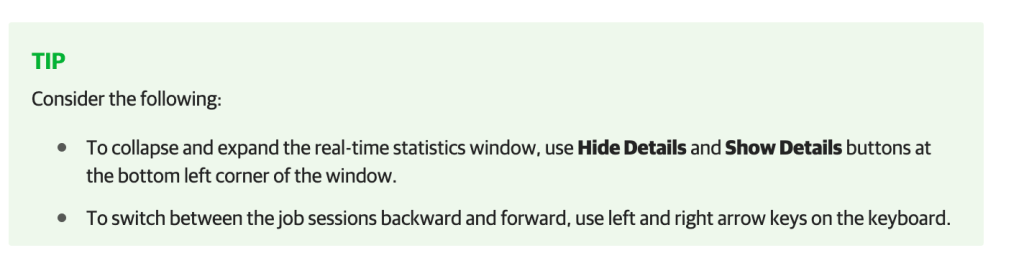
When you have the job status window open you can press left to go to the prior job report or right to go to the latest/next job report. It simplifies having to go to the job log to see how a job has been performing.
Recently I’ve been backing up some large virtual machines over a WAN and wanted to detail the way I’ve approached this challenge.
Situation
Veeam Infrastructure is primarily located in the primary data centre
Multiple remote sites with a mix of Hyper-V and vSphere environments
High speed WAN to the majority of remote sites (>= 1 Gbit/sec)
Remote sites typically did not support Veeam WAN acceleration with existing hardware
Remote sites have several very large virtual machines (10 TB+) in addition to regular VM workload.
Approach
Network throttling was enabled between the Veeam Infrastructure in the core data centre to the remote Hyper-V Hosts (on-host proxy mode) and a vSphere proxy at each remote site. Each site had specific network throttling requirements but generally this was somewhere between 300-500 Mbps 24/7.
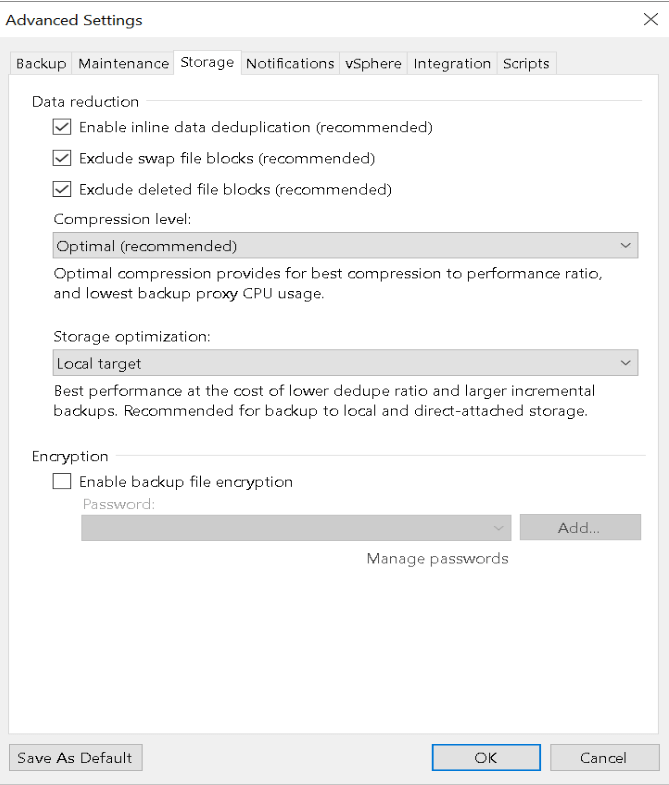
The Veeam Repositories were formatted using ReFS with 64K blocks to support linked clones for faster synthetic full backups. Each backup job was then configured for a singe large VM in an Incremental Forever mode with Synthetic Full backups occurring weekly (& no Active Full Backups), as the data was traversing a throttled WAN the Compression mode was configured to Optimal.
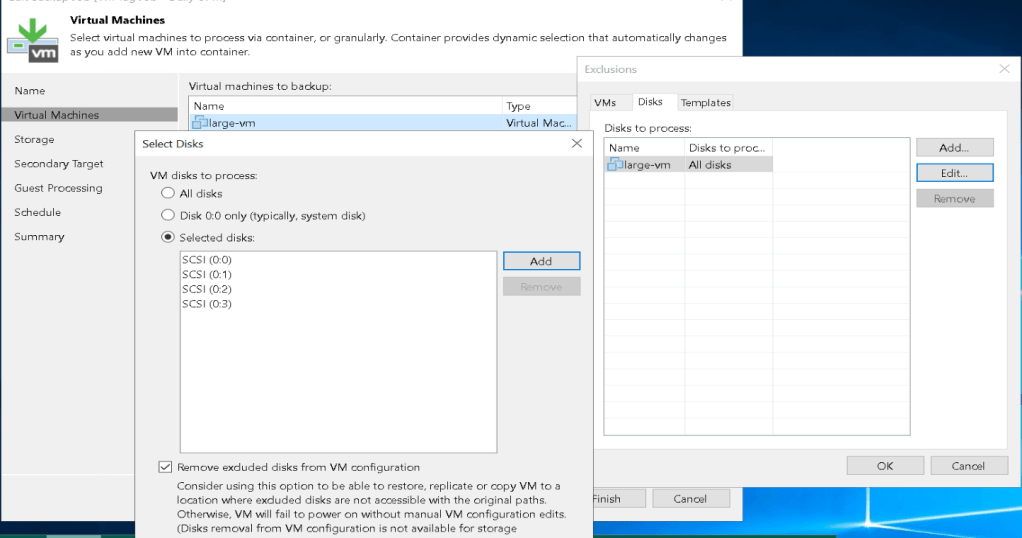
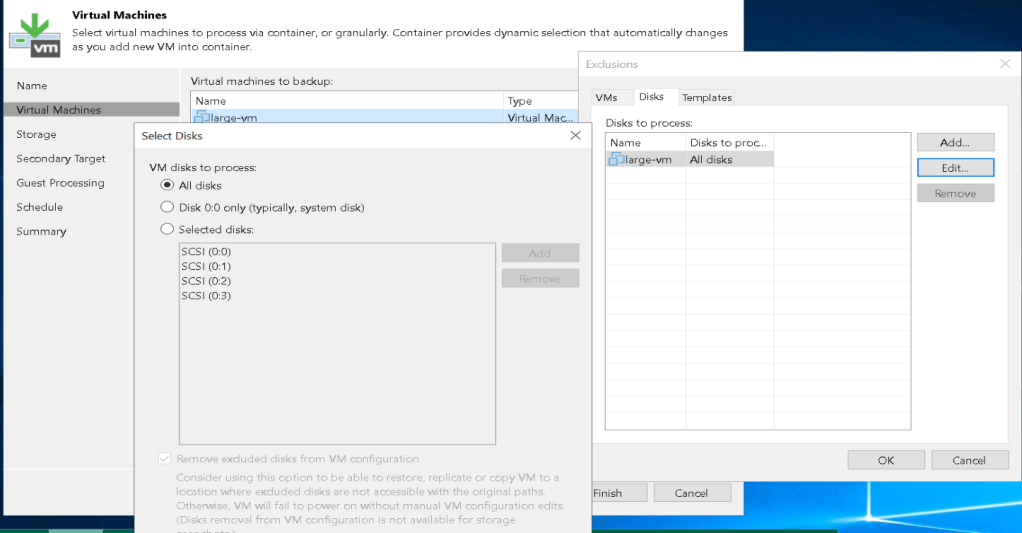
For each large VM, I then went and modified the exclusion list for disks and added an individual disk and performed a backup; once each backup was completed I added additional drives and started another backup. Once all drives were completed, I then reconfigured the disks to process back to “All Disks”.
Outcome
This approach was quite successful had the following benefits:
It didn’t tie up remote proxy tasks for an extended period of time potentially preventing the backup of other virtual machines at the remote site. Each new disk was consuming a single proxy task and existing disks were significantly faster as it only required an incremental backups.
Using a dedicated backup job for the large VM meant that the long run time didn’t impact other VM backup operations.
Each Virtual Disk was not competing with other virtual disks for bandwidth during the initial backup allowing each backup to complete faster. For some disks this still took multiple days.
It provided an immediate restore point for a subset of data when the initial & each subsequent backup completed.
It allowed stop points between each backup if maintenance was required on the Veeam infrastructure.




 blog.alancroll.com